
Guides by role
Clinics and hospitals
Check that a patient is covered before you treat them, send one request for payment, and see every payment you receive. This guide is for the people who work at the front desk and in the accounts office.
Accreditation
A clinic or hospital must be approved by IntriFund before it can treat members. This is called accreditation, and it is given program by program. A clinic accredited for Medical Mission, for example, cannot check or claim for the Dot Glasses program until it is accredited for that too.
Create an account
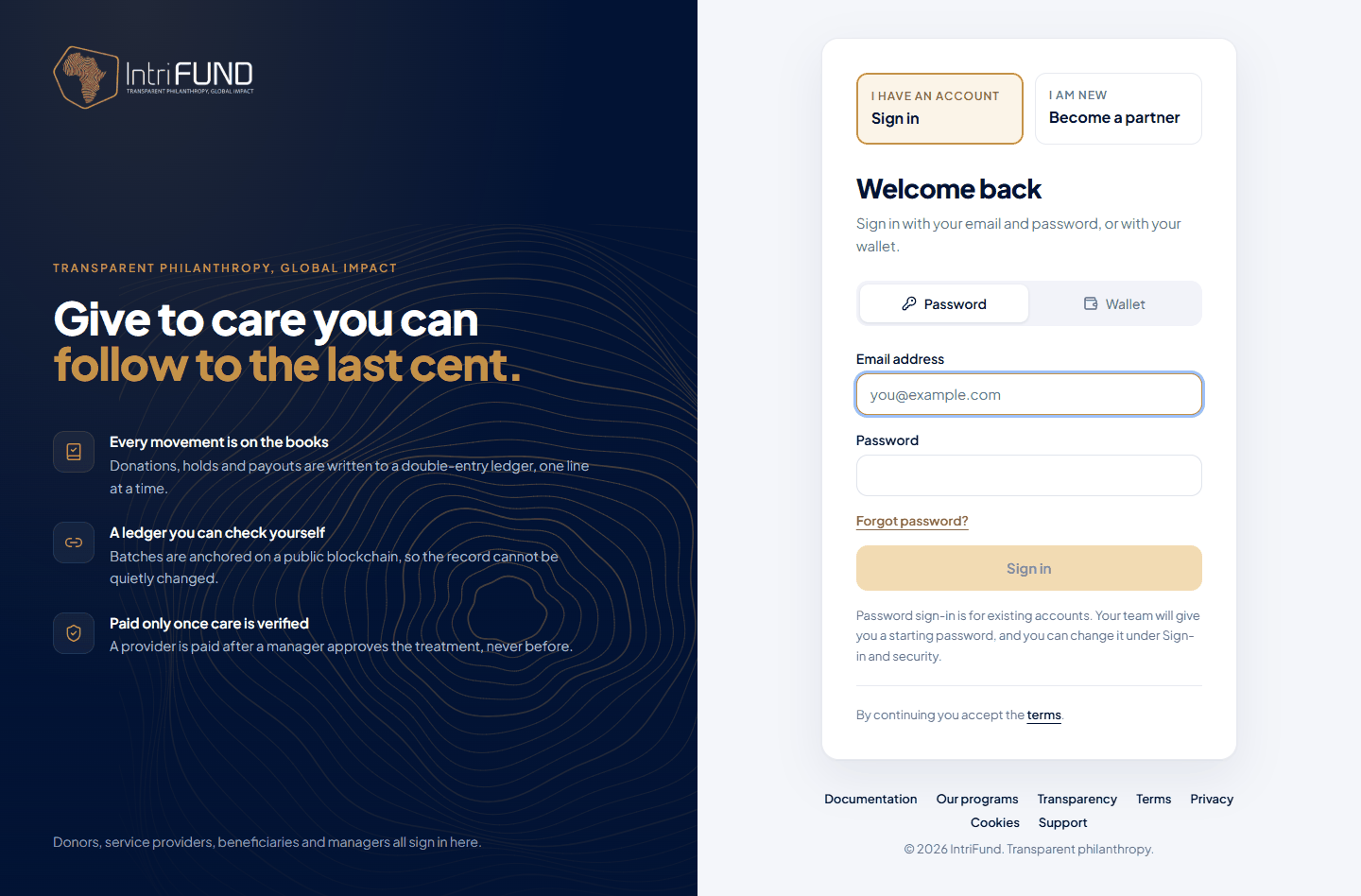
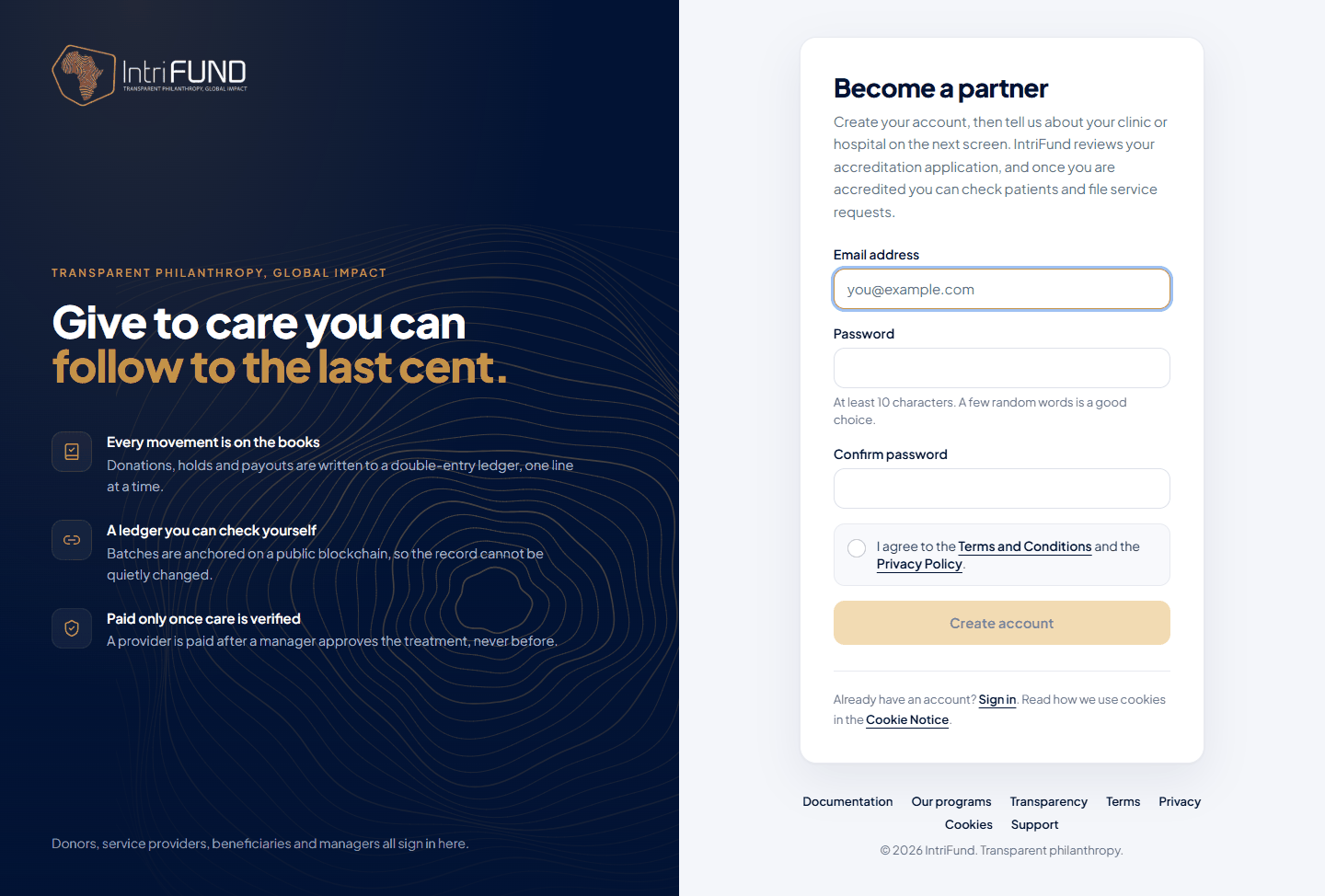
Open the front door and choose Service provider. On the sign-in page, choose I am new: Become a partner, enter your email and a password, and accept the Terms. The first time you sign in, you see the application form instead of the portal.
Fill in the application
Give the organisation’s registered name and address, a contact, and tick the programs you want to be part of. Accept the terms and submit.
Wait for a manager to review it
Your screen shows one of four states: Under review, Verified, Rejected or Suspended. Only a verified clinic can use the portal. A suspended clinic cannot check, claim or withdraw.
Sign in
Clinics sign in on the same page as everyone else. Use your email and password, or a wallet. We recommend turning on an authenticator app under Sign-in and security, because a clinic account can move money. If you forget your password, see Forgot your password.
Your home page
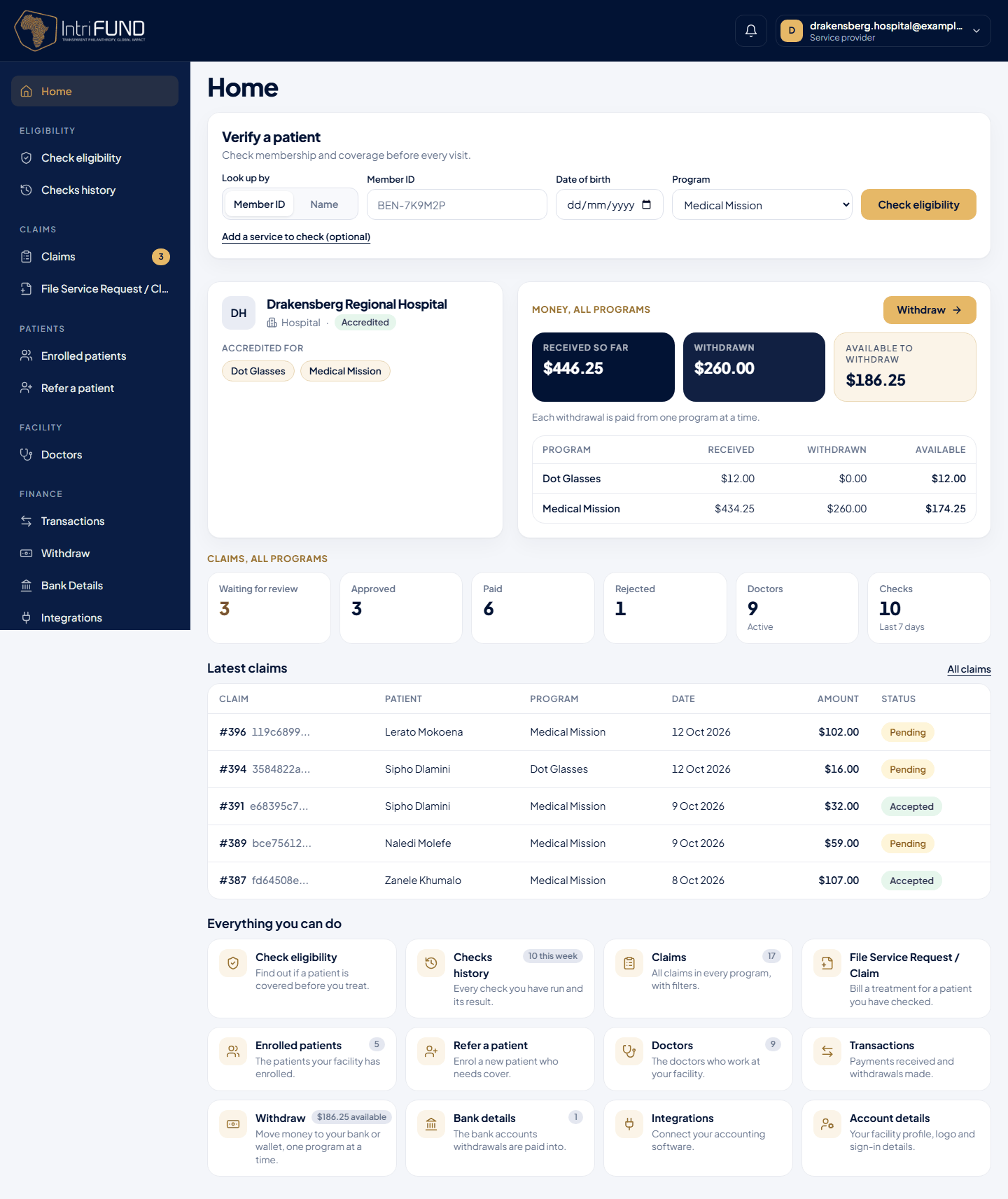
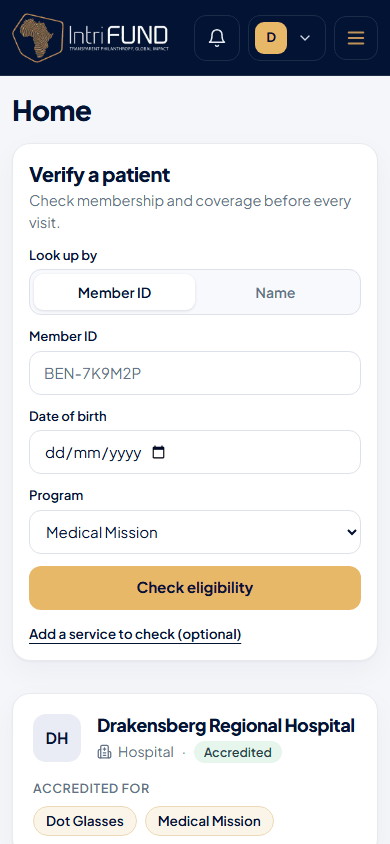
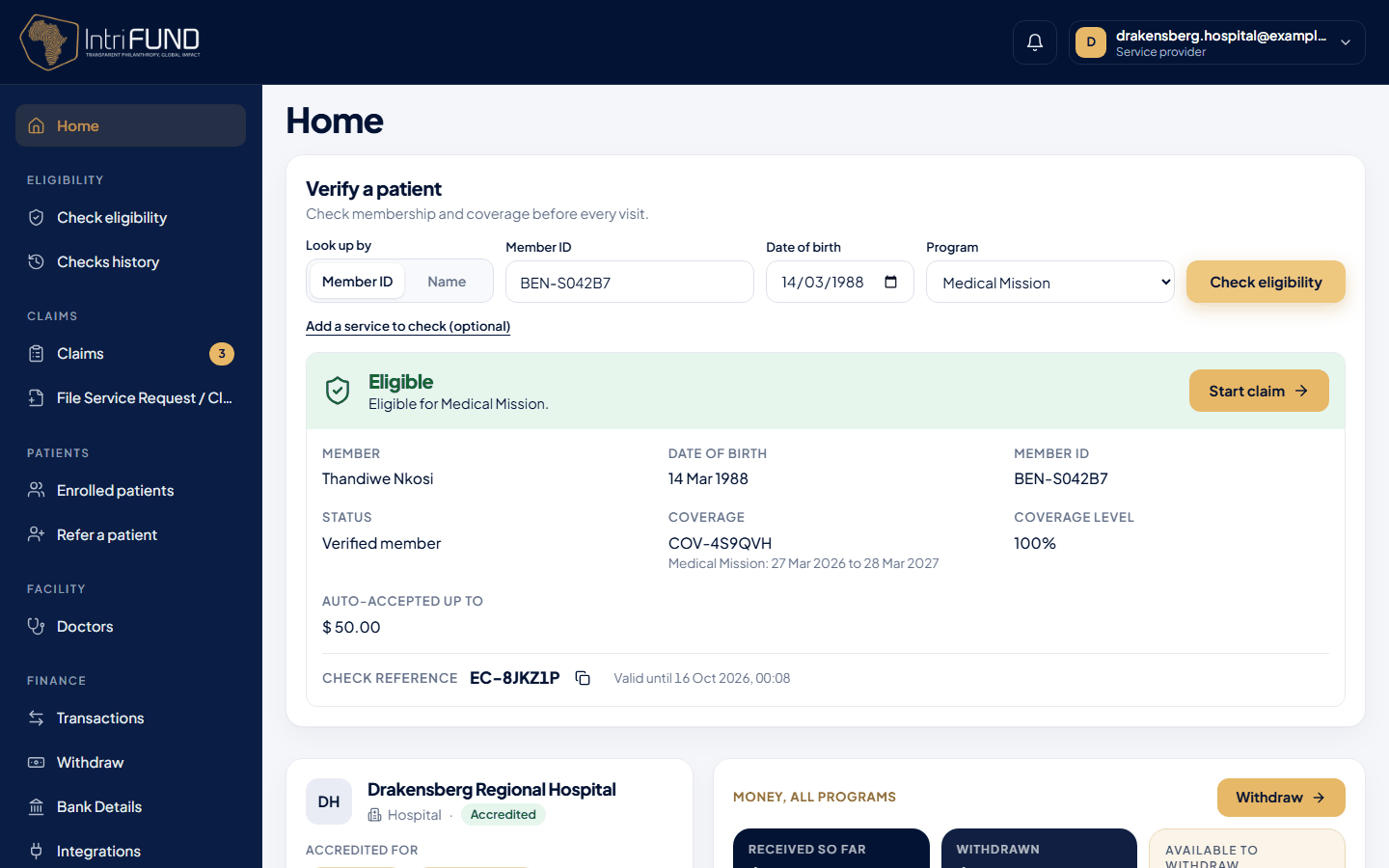
The first thing on your home page is Verify a patient, so every visit can start with a check. Under it is a summary of your facility across all the programs you are accredited for. You do not choose a program to see it.
- Your facility name, type, logo and the programs you are accredited for.
- Your money: received so far, withdrawn, and available, with a table by program when you work in more than one, and a Withdraw button.
- Tiles for claims waiting for review, approved, paid and rejected. Each links to the Claims list.
- Your active doctors, and the eligibility checks of the last 7 days.
- Your five latest claims, with the program of each.
Your menu
The menu is grouped. Eligibility: Check eligibility and Checks history. Claims: Claims (with a count of those waiting) and File Service Request / Claim. Patients: Enrolled patients and Refer a patient. Facility: Doctors. Finance: Transactions, Withdraw, Bank Details, Integrations and Account Details.
Check eligibility
Always check before you treat. Use Verify a patient at the top of your home page (the Check eligibility page in the menu is the same form). It works like checking someone’s medical aid: you give two things, never one.
| You can use | What to type |
|---|---|
| Member ID + date of birth | The BEN- code from the member’s card, and their date of birth. |
| Name + date of birth | First name, last name and date of birth, spelled exactly as the member applied. |
Choose Member ID or Name
Enter the date of birth
Pick the program
Only programs your clinic is accredited for are listed.
Optionally, add a service to check
Open Add a service to check and type a service code or a name. If you add a service, we also check that the program pays for it.
Press Check eligibility
The answer appears at once, right under the form, with a check reference such as
EC-9Q2M7T. Keep it. You need it to file the claim. The Start claim button is first in the result.
What the results mean
Every check is recorded and given a reference, whatever the answer. Only an eligible check can back a request. The screen says Eligible or Not eligible, and a line under it gives the reason. The table below lists the reasons.
| Result | Meaning | What to do |
|---|---|---|
| Eligible | The person is a verified member with cover today in this program, and your clinic is accredited. If you named a service, it is covered. | Treat the patient and file the request within 24 hours. |
| Not found | No member matches what you typed. | Check the spelling, the date of birth and the Member ID. Ask to see the card. |
| More than one match | Two people share the name and birthday. | Use the Member ID from the card. |
| Not verified | They have registered but IntriFund has not verified them yet. They are not a member. | They must wait for verification. |
| No coverage | A verified member with no active cover today (not enrolled, ended, cancelled or not started). | They can apply to join a program. |
| Program not covered | The member has cover, but not in the program you picked. | Pick the right program. |
| Service not covered | The cover is fine, but this service is not on the program’s list. | Do not file for that service. |
| Not accredited | Your clinic is not accredited for this program. | Ask IntriFund to add the program. |
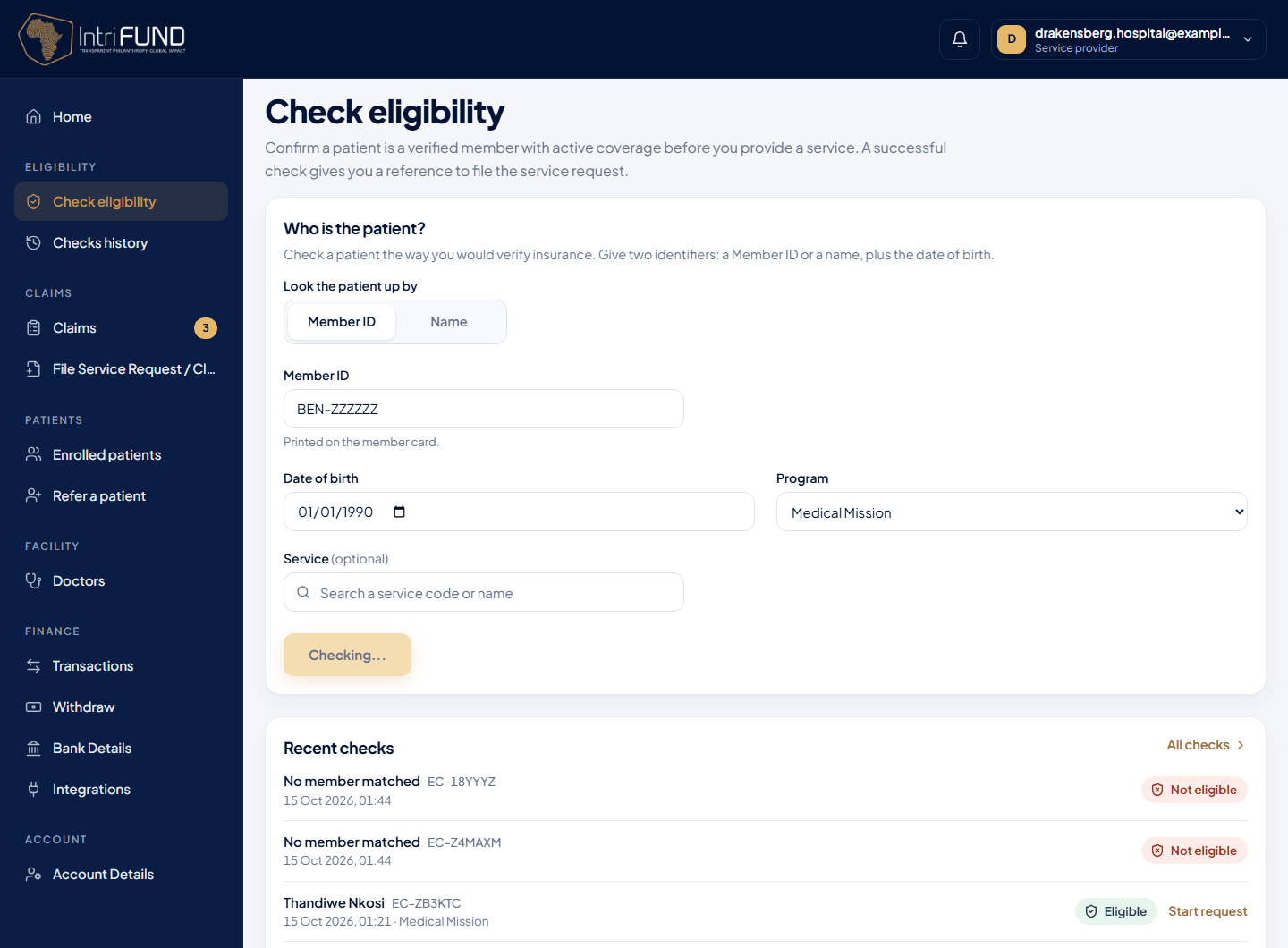
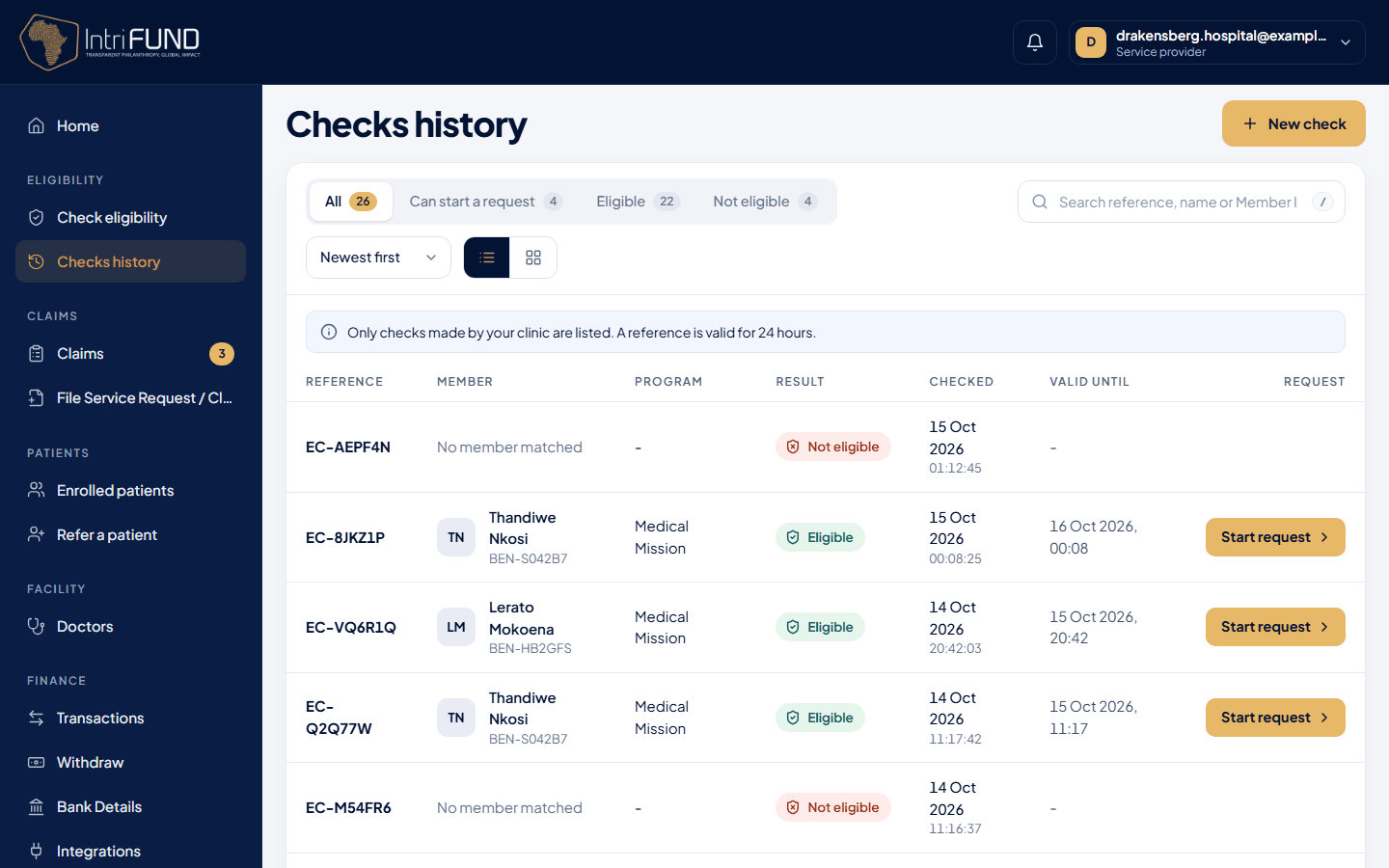
Checks history lists every check your clinic has made, with its result and reference, so you can find one again later.
File a service request
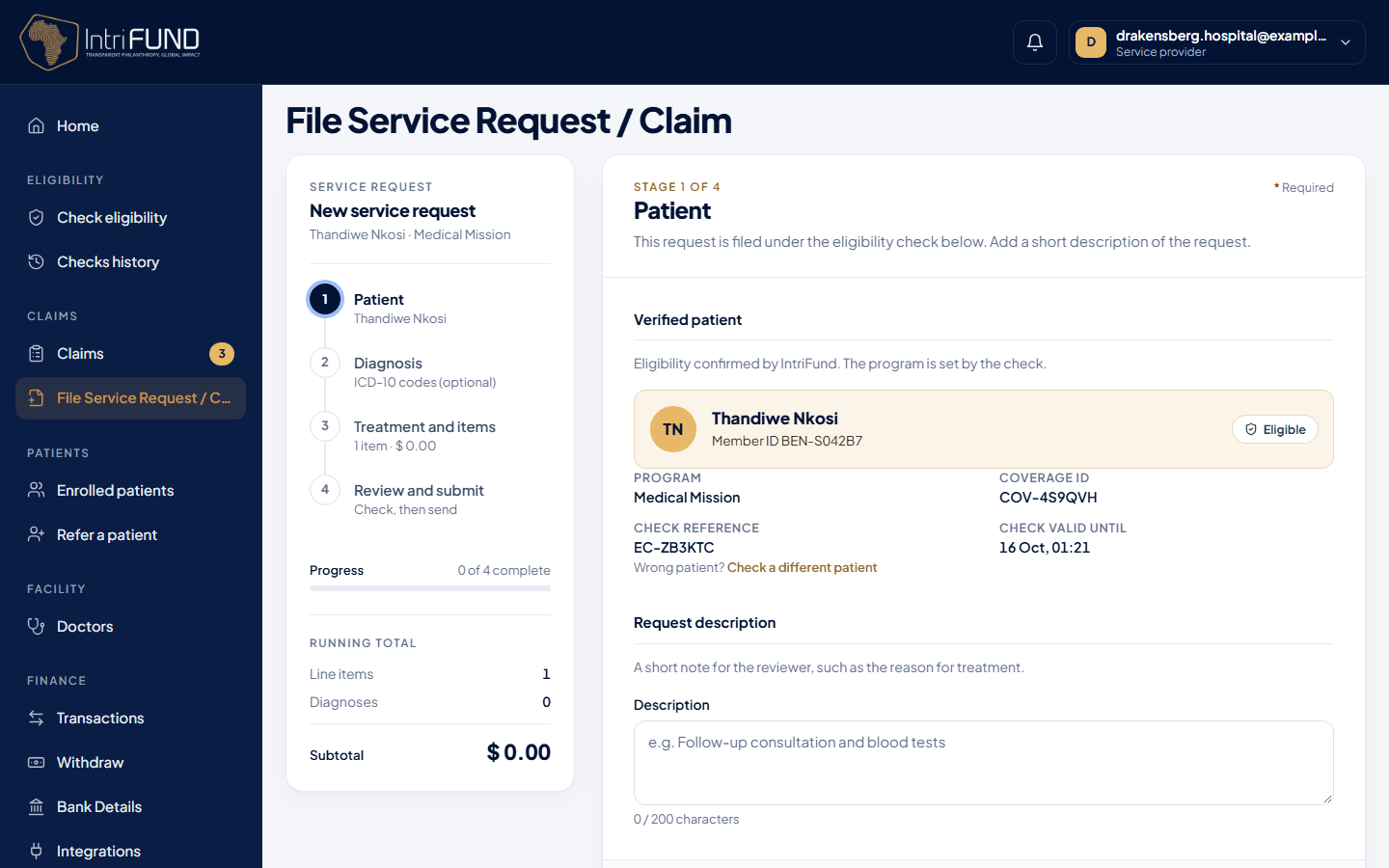
A service request is also called a claim. After an eligible check, press Start claim. You can also open File Service Request / Claim in the menu and paste the check reference. A request must quote a valid reference for the same clinic, member and program. A reference lasts 24 hours.
- Patient
- Already filled in from the check. Add a description of the request.
- Diagnosis
- Optional. Record the ICD-10 diagnoses that apply.
- Treatment and items
- The services and supplies you gave, each with its code, quantity and price. You may also choose a doctor here (optional).
- Review and submit
- A last look at everything. The request then goes to a manager.
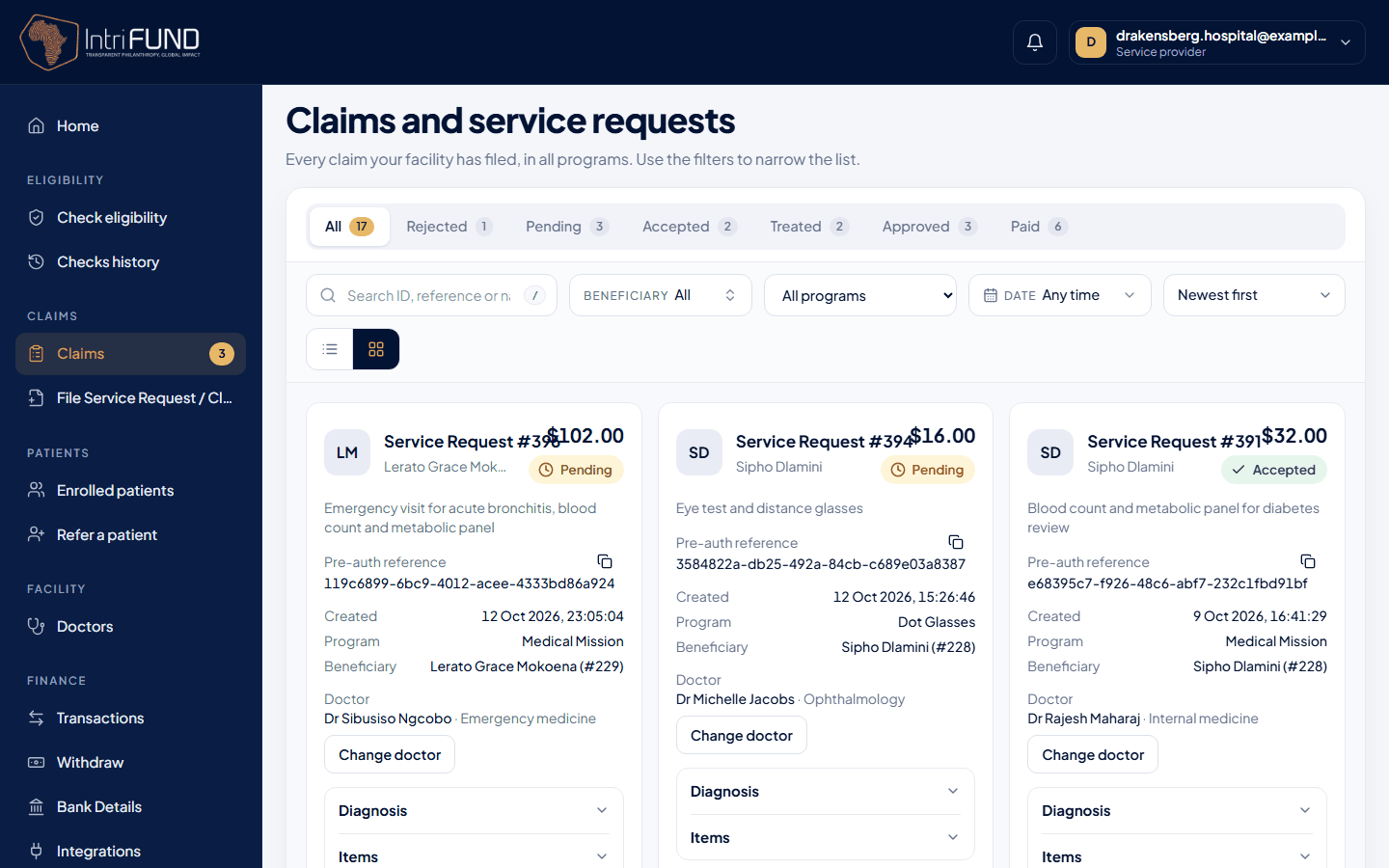
Small requests can be accepted automatically. Each cover has an auto-accept amount, shown on the check result. A request below it is accepted at once. Anything above waits for a manager. Open Claims in the menu to follow each one. The list covers all your programs, has a Program filter, and shows the program of every claim.
| Status | Meaning | Your next step |
|---|---|---|
| Pending | Waiting for a manager. | Nothing. You can delete it if it was a mistake. |
| Accepted | Approved to go ahead. The funds are set aside for it. | Treat the patient, then press Treatment completed. |
| Treated | You have marked the treatment as done. | Wait for a manager to confirm. |
| Approved | The manager has confirmed the treatment. | Payment follows. |
| Paid | Your share is in your clinic account. | You can withdraw it. |
| Rejected | Not accepted. The manager’s reason is shown. | Press Edit and resubmit. |
Doctors
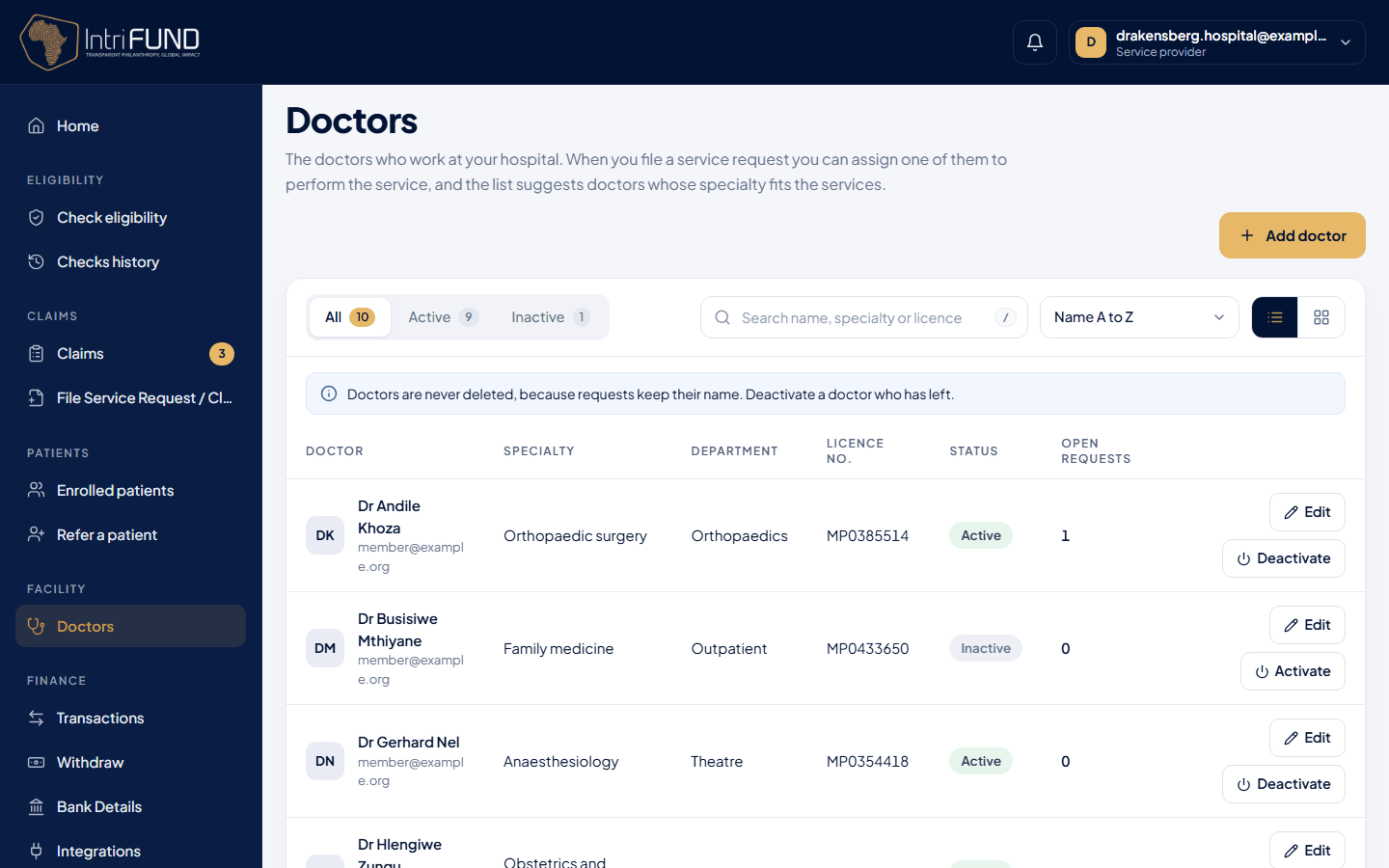
A clinic may have one doctor or a few. A hospital has many. Under Doctors you keep the list of doctors at your facility: name, specialty, department, licence number, email and phone. Doctors are optional everywhere. You can always file a request without one.
- Suggestions. On the Treatment and items stage, the doctors whose specialty or department fits the services you entered are ranked first, with a Suggested chip on the top three. Ties go to the doctor with the fewest open requests. You can pick any doctor, or none.
- Assign later. On a request that is pending, accepted, treated or approved, press Assign or Change doctor.
- Who sees the doctor. The name and specialty show to you, the manager and the member. Phone, email and licence number are never shown to members or managers.
- Deactivate, never delete. A doctor who leaves is switched off. Past requests keep the name.
Transactions and withdrawals
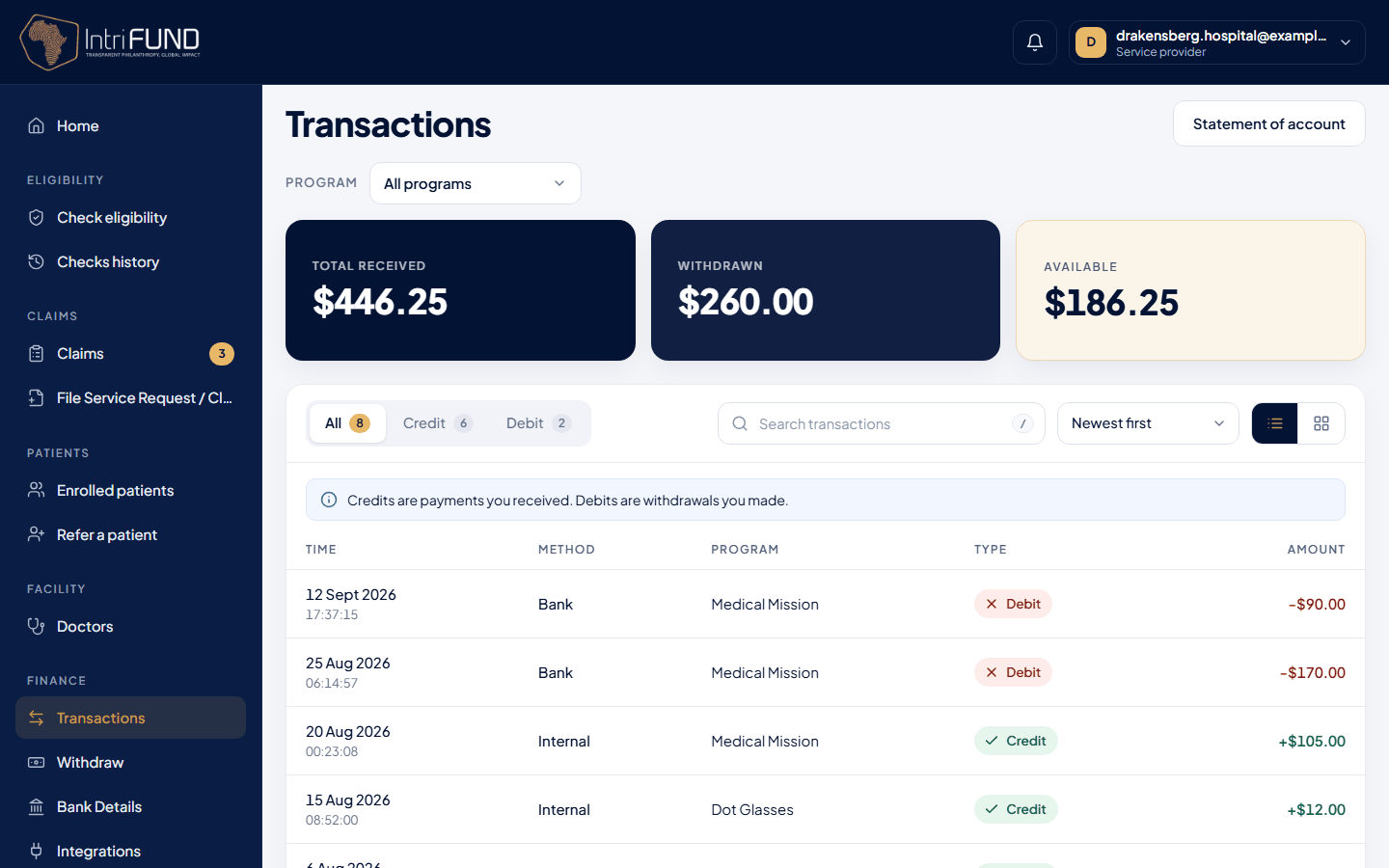
Transactions lists every payment IntriFund has made to you and every withdrawal, across all programs, with the program on each line. Use the Program filter to see one program. When a request is approved, your share is paid to your clinic account inside IntriFund, and a platform fee is taken by IntriFund.
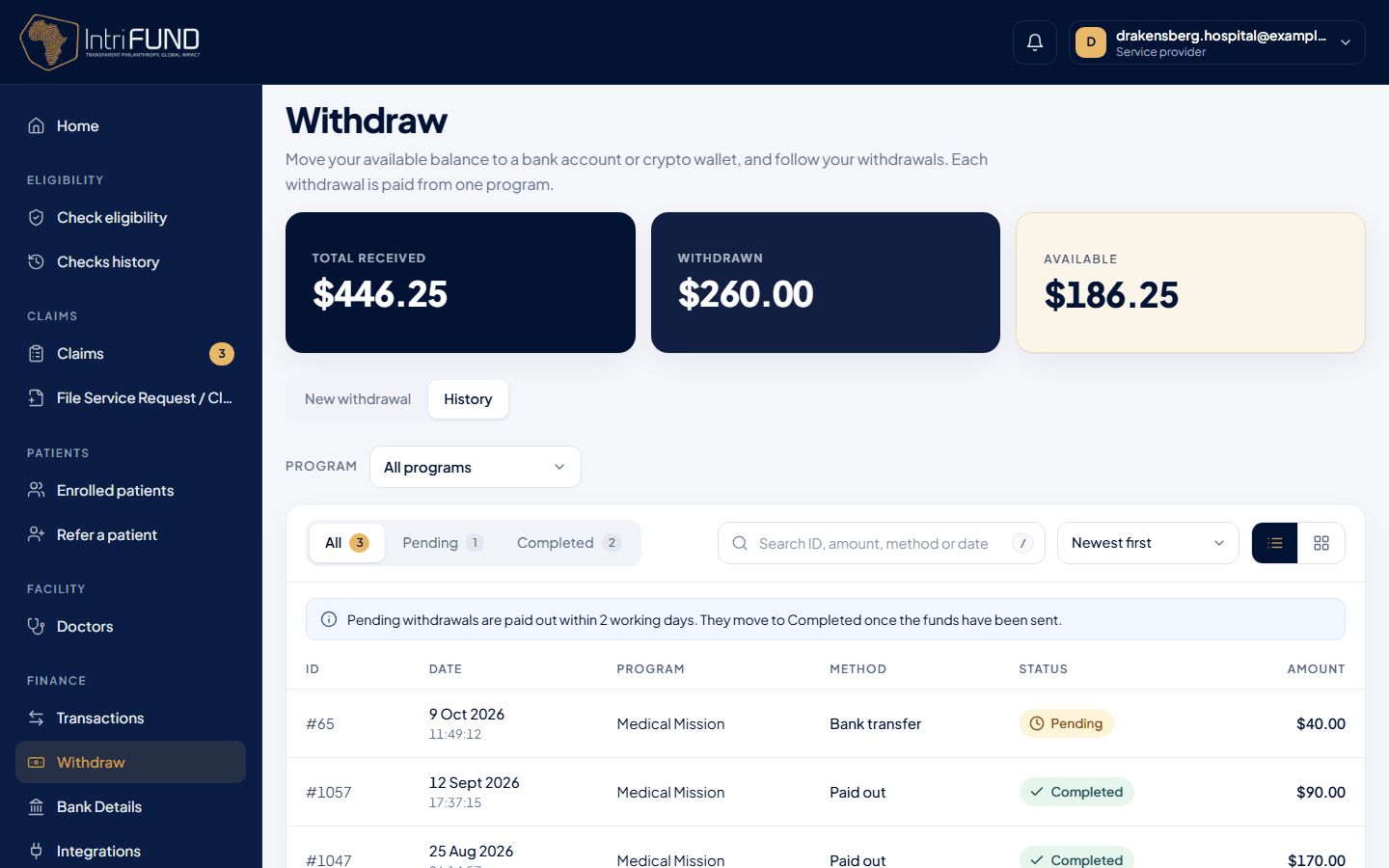
To move money out, go to Withdraw. Each withdrawal is paid from one program: choose the program in Withdraw from program (each shows what is available there), then the amount and a destination: a bank account you saved under Bank Details, or a crypto wallet. A manager reviews and processes it. You can follow the request until it shows as completed.
Statements and facility logo
Press Statement of account on the Transactions screen for a PDF with your payments and withdrawals. It carries the IntriFund logo on the left and your own facility logo and name on the right, a reference number and the date it was made, so you can hand it to your accountant or an auditor. Hospitals and clinics are marked as such.
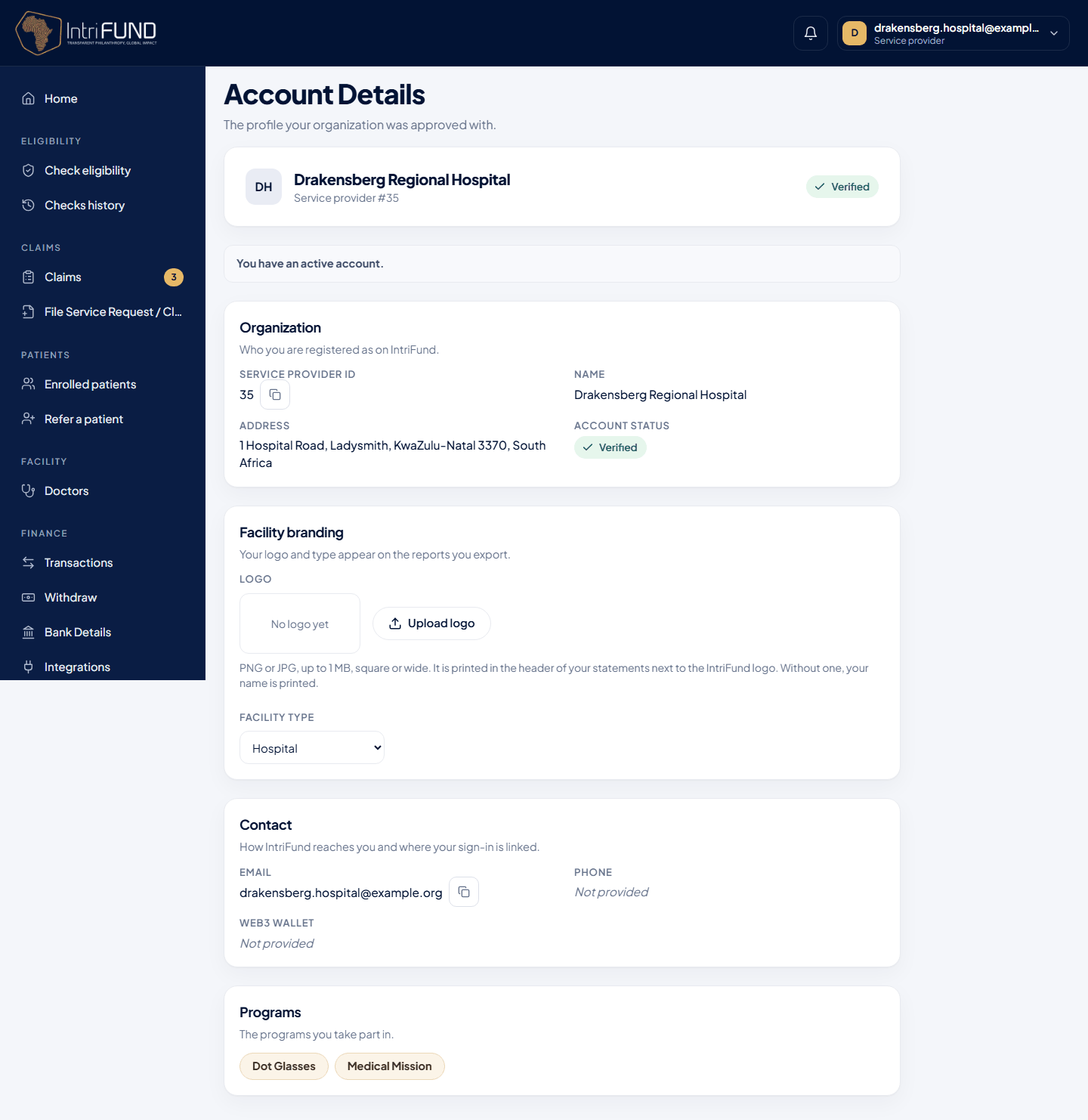
Open Account Details
Find Facility branding.
Choose Clinic or Hospital
This is shown on the manager’s provider card.
Upload your logo
PNG or JPG, up to 1 MB. Without a logo, your name is printed in text.
Accounting integrations
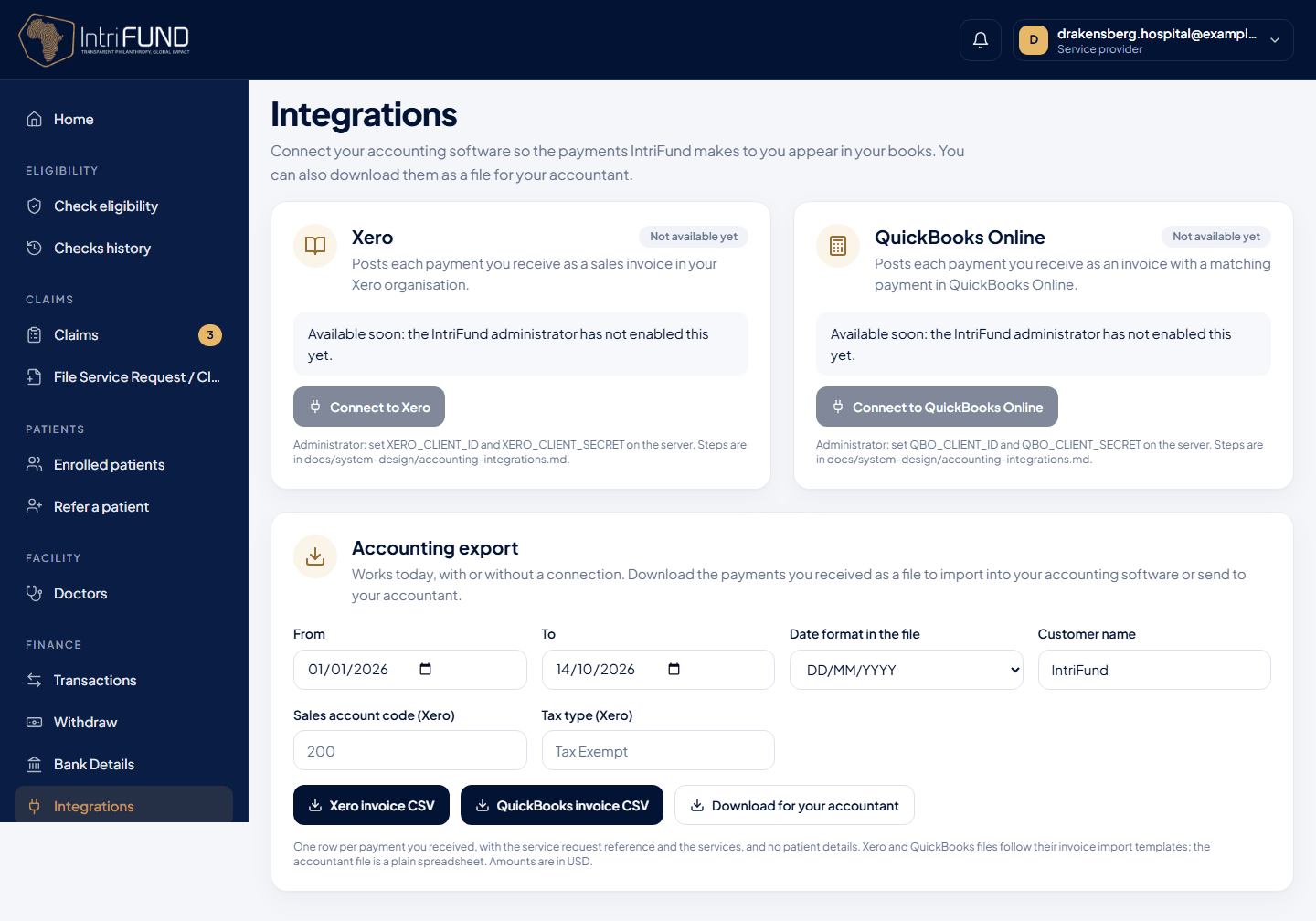
Under Integrations you can send each payment into your accounting software, so your books always match IntriFund. There are two ways:
CSV export (works today, nothing to set up)
Download the payments you received as a file you can import into Xero, QuickBooks Online or a plain sheet for your accountant. Choose the date range and press download.
- Xero: matches Xero’s sales invoice import. Pick your tax rate name, sales account code and date format first.
- QuickBooks Online: matches its invoice import columns.
- Accountant CSV: date, reference, description, amount, currency, contact and ledger ID.
Live connection (Xero and QuickBooks)
When it is switched on for your organisation, Connect signs you in to your accounting package and every new payment is posted as an invoice with its payment. A payment is never posted twice. If the card says Available soon, the connection has not been enabled yet; use the CSV export meanwhile.
Developers who want to connect an EMR instead should read the FHIR API guide.